Required Information is :
Your Name:
Age:
Sex:
Occupation:
Email Id:
Comment or Query :
Macros and User Defined Functions
What is a Macro: A stored series of commands and functions that can be run to perform a specific task or tasks. In Excel a macro could be a complete program. Macros may be run from a toolbar button, or menu, from a shape in the workbook, or from another macro.
What is an Event Macro: Event macros are triggered by an event such as opening a double clicking a cell, right click, opening a workbook, or a activating a worksheet. (Event macros)
What is a Function: Excel has built in functions like IF, AND, OR, SUM which you use in your worksheet. Functions can invoke other functions to return a value.
What is a User Defined Function: You can make up your own functions or use functions made up by someone else, either or both would be User Defined Functions (UDF), because they are not built into Excel (not built-in).
Your personal.xls file is where you store your own macros and User Defined Functions (UDF),that you want to be available from any workbook. For macros you only want available in a single workbook you would install macros in that workbook.
Recording a macro: If you want to program something, or issue a series of commands more or less simulating what you do one at a time at the keyboard you can create a macro. The usual way to start into macros is to record a macro. Macros in Excel are written in VBA (Visual Basic for Applications). Recording a macro in Excel creates a series of actions in VBA, to duplicate what you enter - it does not record individual keystrokes.
Macros and UDF can be stored in your workbook or in another workbook. Personal.xls is just another workbook, but it is commonly used and described for the macros that you want available to more than one workbook for your own use. The personal.xls is normally started when you bring up Excel. To make sure that there is a DIM statement for each variable and that the usage conforms to the definitions it is imperative that you use Option Explicit which included at the top of modules in Excel 2000 by default. (VBE Tools, Editor, [x] Require Variable Definition).
Tools menu becomes Developer Tab in Excel 2007, and is not shown by default. To display the Developer Tab, click on the Office 2007 button in upper left corner, then on options, and select Developer. You can use the same shortcut keys in Excel 2007 as you used in previous versions of Excel.
Tools menu, Options becomes Office Button in upper left corner of Excel 2007, then click on options (at bottom), and then guess at which item on the left to use, for instance what was Tools (menu), Options (submenu), View (tab) becomes Office(button), Advanced (button), then Display heading instead of View.
Security Level set to Medium to run macros (#security)
Macros will not run if the security setting is set to High in Excel, Check under Tools, Macro, security, set to Medium.
Record a Macro
If you don't know if you have a personal.xls or not you can let Excel record a macro in your personal.xls and if you don't have one then Excel will create a personal.xls workbook for you in the correct directory, which is in the XLSTART directory. The XLSTART directory is in the same directory as you are running excel.exe from.
Let's record a macro. Hopefully you are using XL97 or later because there would be some minor modification otherwise.
- Starting on your menu bar: Tools, Macro, Record New Macro
- In the middle drop down choose "record to personal Macro workbook" which is your personal.xls or if you just want macro available in the current workbook choose "This Workbook".
- supply a name, or accept the suggested name i.e. Macro1 (anything you do now in Excel will be recorded in the macro. )
- Select another cell i.e. select cell B1, (anything you do will be recorded — something more fancy would be to Select Column B and using the Ctrl key Select D and F then Click on interior color icon looks like a paint bucket, or use Format, Cell, Patterns and choose a light color.)
- Click on the stop button on the floating macro dialog box that is over your sheet, or use Tools, Macro, Stop Recording – (You should not use the [x] to exit out of the stop recording dialog. )
- Alt+F11, to get to the Visual Basic Editor
- Ctrl+R, to bring up the Project Window (should be on leftside)
- F7, brings up the Code
- Ctrl+G, brings up the Immediate window
- Normally you would see the Project window (left), Code window (right), Immediate window (bottom) at the same time.
- under VBAProject (personal.xls) or the name of your current workbook if you chose "This workbook" earlier. Select modules, then the highest numbered module, double click on the module name (i.e. module1)
- You should see the macro you just recorded in the code window.
- The next step is running your macro.
Use someone else's macro
Instead of recording your own macro, install a macro from a newsgroup, or other source such as a web page.
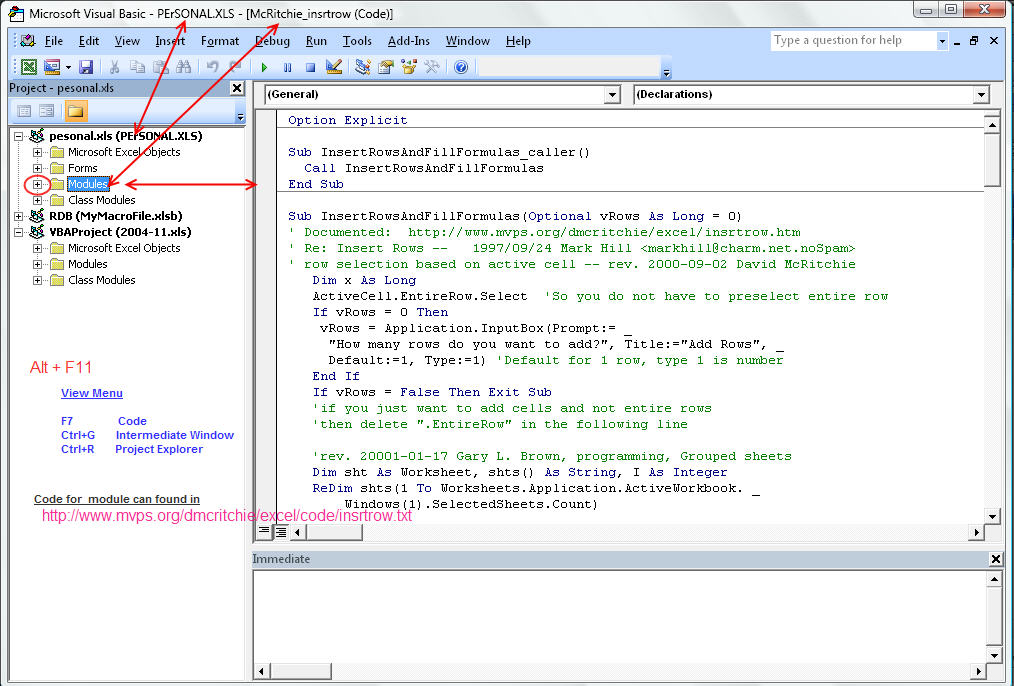
Bring up the Visual Basic Editor (VBE) standard with normal layout of windows: Project window (left), Code window (right), Immediate window at the bottom. [Picture Alt+F11 -- Project view"]
- Alt+F11, to get to the Visual Basic Editor
- Ctrl+R, to bring up the Project Window (should be on leftside)
- F7, brings up the Code
- Ctrl+G, brings up the Immediate window
Within the Project Explorer select your project, which is your workbook name. You will install the provided macro in your workbook, or if you want the macro to always be accessible you would install in your personal.xls workbook.
If you do not see modules in your project (workbook) which you've selected, then invoke the Insert (menu), and then module, the first one created in a project would be module1. You can put several macros in a module or create a new module for some addition macros. You can rename a module with help of F4.
Select the module with a double click on the module name (i.e. module1)
- Copy code (Ctrl+C) from your source then paste (Ctrl+V) the code into a standard module that you just picked.
- Return to Excel to run your macro. (see below)
Something to keep in mind when you use a macro is that you can not undo use of macro with Ctrl+Z.
Running the Macro you just Installed
Now run the macro that you just created or installed from the Excel Window.
- Alt+F8
- Select the macro you installed (i.e. Macro1), then hit the [Run] button.
User Defined Functions (#UDF)
User Defined Functions are installed into the same files as Macros. Macros begin with SUB, and User Defined Functions begin with FUNCTION. Another distinction is that you will not find UDF in the macro list (Alt+F8), but you will find them in the Function Wizard list from the address bar button , or from the insert menu (then function...).
- on Excel 2000 choose "User Defined" on the left side and you will see your User Defined functions on the right.
- on Excel 2002 choose "User Defined" on the dropdown and then you will see your User Defined functions in the box below.
- Unlike macros you will need to include the project library (i.e. personal.xls!) if not in the same workbook unless you set up references or make if part of an addin. Otherwise, you must include personal.xls when invoking the function:
=personal.xls!GetFormula(D4)
Favourite User Defined Functions
Favorite Macros
Additional Comments:
Running Efficiently
Even though you can have any number of macros in a module you want to put macros and functions together that are likely to be needed at the same session together, as once the module is opened it will use more memory. Default module names are module1 to module n and when you record a macro they are somewhat separated by putting each days recordings into a separate module. You can rename a module with F4 (view, properties).
In the Visual Basic Editor you should close the modules before closing your VBE session, because when Excel is reopened modules that were open will be reopened.
Writing Efficient Code
Whether you write your own code or use someone else's, you want to make sure that you are using sound and efficient coding. Some tips on writing macros can be found in Proper, and other Text changes - Use of SpecialCells, and in Slow Response and Memory Problems.
If you are providing macro examples, please indent your code so that it is readable. If you are posting code to a newsgroup try to break lines yourself, rather than expecting someone to fix coding based on syntax errors.
Finding macros to do what you want
Finding a macro that someone else wrote saves a lot of time, and if you are just starting tends to avoid making serious mistakes. Suggest including the word "SUB" when searching the Excel newsgroups.
When searching the web include both the word SUB (for macros) and Excel. You might want to remove junk websites using Customize Google in Firefox to eliminate search hits that really don't have web type content by excluding those that contain newsgroup postings. A less reliable way is to exclude some words associated with newsgroup postings: -HTH and -"posted by" in your Google web search (note the negative signs in front to exclude items).
Terminology
cell.EntireRow.Delete
cell is the object
EntireRow is a property of that object
Delete is a method that operates on the object — (verb, command, action)
EntireRow is a property of that object
Delete is a method that operates on the object — (verb, command, action)
http://www.mrexcel.com/excel_video_training.html
You can get 3 Pack of Universal Touch Screen Stylus Pen (Red + Black + Silver)
 at just $2.55
and get Transcend 32 GB Class 10 SDHC Flash Memory Card TS32GSDHC10E
 at just $48.21
Hurry its ........ Offer for limited time.